
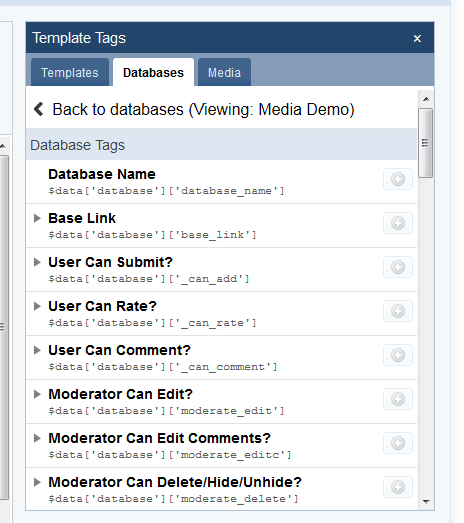

All templates are capable of using template tags, and as such when you edit any type of template, there will be a "template tag help" link. Clicking this produces a sidebar (there is then a link in the sidebar to open a separate popup) that details all of the template tags you can insert to include IP.Content data within your template.
However, with database and article templates, there are additional variables that are passed into the template to allow it to manipulate and display the HTML that represents the content. For instance, different data is retrieved and available when you are looking at a list of articles compared to when you are viewing a single article. You need to know what these variables are in order to be able to properly modify the template to display data in the manner you want, and as such, a template variable help popup is available that will detail the variables available for each template type.
When you are editing a template, click on "template variable help" and a new window opens displaying the variables you can expect to be available to the template with a short description of each variable. If you get stuck, this help window can help shed some light on the variables that are available, what values they should contain, and how you can use these variables to your advantage to build a more dynamic and useful interface for your database.
Recommended Comments
Create an account or sign in to comment